
The Seagate Expansion 24TB suits buyers building a large backup library, while the WD Elements 20TB suits a Windows-first desk that needs a simple plug-and-play drive. The other three cover Mac backup, protected backups and a narrow shelf, so the choice comes down to capacity, computer type and stated extras.
All five are desktop drives, not pocket portables, with stated capacities from 18TB to 24TB. Two of the five carry the Seagate name with nearly identical listing copy, two carry the WD name with different strengths, and one SanDisk Professional drive brings the only USB-C connection in this roundup. Read the capacity, the setup notes and the stated extras before choosing.
As an Amazon Associate, we earn from qualifying purchases.



Pick by Your Need
- Best overall: Seagate Expansion 24TB. 24TB of stated capacity with Rescue Data Recovery Services included.
- Best for Windows plug-and-play: WD Elements 20TB. Plug-and-play ready for Windows PCs at 1.98 pounds.
- Best for Mac backup: SanDisk Professional G-Drive 18TB. Mac Ready with Apple Time Machine compatibility and a USB-C connection at 10Gbps.
- Best for protected backups: WD My Book 18TB. Password protection, 256-bit AES hardware encryption and backup software stated in the listing.
- Best for a narrow shelf: Seagate Expansion 20TB. 20TB of stated capacity in a body 1.44 inches wide, the narrowest stated width here.
Quick Answer
The Seagate Expansion 24TB gives 24TB of stated capacity and Rescue Data Recovery Services, while the WD Elements 20TB gives a straightforward Windows-first setup at 1.98 pounds. Mac users get the simplest path with the SanDisk Professional G-Drive, which states Mac Ready and Apple Time Machine compatibility, and the WD My Book 18TB adds password protection plus hardware encryption for private files.
Comparison Table
| Drive | Capacity | Dimensions (L × W × H) | Weight | Noted feature | Buy |
|---|---|---|---|---|---|
| WD Elements 20TB | 20TB | 5.31 × 1.89 × 6.53 inches | 1.98 pounds | Plug-and-play for Windows | View on Amazon |
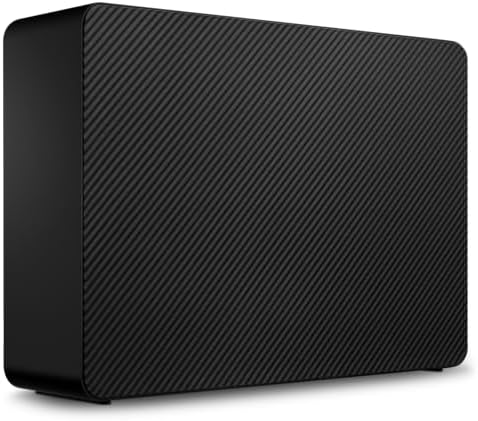
| Seagate Expansion 24TB | 24TB | 7.04 × 1.65 × 4.92 inches | 2.95 pounds | Rescue Data Recovery Services | View on Amazon |
| SanDisk Professional G-Drive 18TB | 18TB | 8.27 × 5.24 × 1.61 inches | 3.06 pounds | USB-C 10Gbps, 270 MB/s read and write | View on Amazon |
| WD My Book 18TB | 18TB | 1.9 × 6.7 × 5.5 inches | 2.83 pounds | Password protection, 256-bit AES encryption | View on Amazon |
| Seagate Expansion 20TB | 20TB | 6.93 × 1.44 × 4.75 inches | 2.59 pounds | Rescue Data Recovery Services | View on Amazon |
Decision Guide
Start with capacity, since the stated figures split the five into three groups: one 24TB drive, two 20TB drives and two 18TB drives. The 24TB Seagate Expansion suits a library that keeps growing, the two 20TB drives suit a large library with room to spare, and the two 18TB drives suit a backup plan that already knows its size.
Computer type matters more than it first looks. The SanDisk Professional G-Drive is the Mac Ready pick, with Apple Time Machine compatibility stated, and it reformats easily for Windows, so it suits a Mac-first desk. The WD Elements 20TB is plug-and-play ready for Windows PCs, and reformatting is required for MacOS use. Both Seagate drives recognize Windows and Mac computers automatically, yet Time Machine needs a reformat first. No Mac use is stated for the WD My Book, so Mac buyers should check the product page for that drive before choosing it.
Desk space and extras finish the decision. The G-Drive measures 8.27 inches long and 5.24 inches wide, but at 1.61 inches high it stacks with other drives. The Seagate Expansion 20TB measures 6.93 × 1.44 × 4.75 inches, so it fits a narrow shelf. The WD My Book states password protection, while Rescue Data Recovery Services are stated for both Seagate drives.
1. WD Elements 20TB Desktop Drive — Best Windows Plug-and-Play Pick
A Windows-first desk gets the simplest setup here: the listing describes plug-and-play readiness for Windows PCs, while MacOS use needs reformatting. At 1.98 pounds, this drive carries the lightest stated weight here, and its 5.31 × 1.89 × 6.53 inch body takes a small patch of desk. The trade-off is the thin extras list: no backup software is stated, no password protection is stated, and no transfer speed figure is stated. Skip it if the drive must work with a Mac without reformatting.
| Spec | From the listing |
|---|---|
| Capacity | 20TB |
| Dimensions | 5.31 × 1.89 × 6.53 inches |
| Weight | 1.98 pounds |
| Color | Black |
| Interface | USB 3.0 |
| Transfer speed | The listing does not state it |
2. Seagate Expansion 24TB Desktop Drive — Best Overall Capacity Pick
With 24TB of stated capacity, the Seagate Expansion 24TB holds the largest stated capacity here, and Rescue Data Recovery Services are included in the listing. Setup means plugging in the power adapter and the USB cable, then dragging and dropping files onto the drive, with Windows and Mac computers recognized automatically, though Time Machine use needs reformatting first. One conflict needs a note: one listing line names USB 3.3 for transfers while the product name states USB 3.0, so check the product page for the interface version before choosing. It measures 7.04 × 1.65 × 4.92 inches and weighs 2.95 pounds.
| Spec | From the listing |
|---|---|
| Capacity | 24TB |
| Dimensions | 7.04 × 1.65 × 4.92 inches |
| Weight | 2.95 pounds |
| Color | DESKTOP |
| Interface | USB 3.0 |
| Data recovery | Rescue Data Recovery Services |
3. SanDisk Professional G-Drive 18TB — Best Mac-Ready Pick
An enterprise-class Ultrastar 7200RPM drive sits inside this G-Drive, with a USB-C connection at 10Gbps stating up to 270 MB/s read and 270 MB/s write. At 1.61 inches high, it has the lowest stated height here, and the anodized aluminum enclosure stacks with other drives, while Mac Ready status and Apple Time Machine compatibility are stated and it reformats easily for Windows. The listing notes speeds are based on internal testing and may vary with the host device, so treat 270 MB/s as a stated ceiling rather than a promise. Skip it if the desk has no room for an 8.27-inch-long drive, since this is the longest stated body in the roundup at 3.06 pounds.
| Spec | From the listing |
|---|---|
| Capacity | 18TB |
| Dimensions | 8.27 × 5.24 × 1.61 inches |
| Weight | 3.06 pounds |
| Color | Dark Grey |
| Interface | USB-C (10Gbps), USB 3.2 Gen 2 |
| Drive inside | 7200RPM Ultrastar |
4. WD My Book 18TB Desktop Drive — Best Protected Backup Pick
Password protection sets this My Book apart: the listing pairs it with 256-bit AES hardware encryption, plus software for device management and backup. A data transfer rate of 600 MB/s is stated, with SuperSpeed USB at 5 Gbps and USB 2.0 compatibility, and the operating temperature range is stated as 5°C to 35°C, with the body measuring 1.9 × 6.7 × 5.5 inches at 2.83 pounds. The backup software needs download and installation, with user account registration possibly required, and the listing notes actual user capacity may be less depending on the operating environment. No Mac use is stated for this drive, so Mac buyers should confirm compatibility on the product page first.
| Spec | From the listing |
|---|---|
| Capacity | 18TB |
| Dimensions | 1.9 × 6.7 × 5.5 inches |
| Weight | 2.83 pounds |
| Color | Black |
| Interface | SuperSpeed USB (5 Gbps), USB 2.0 compatible |
| Transfer rate | 600 MB/s |
5. Seagate Expansion 20TB Desktop Drive — Best Narrow-Shelf Pick
The second Seagate in this roundup repeats the Expansion formula at 20TB: its listing copy matches the 24TB Expansion almost word for word, with capacity, dimensions and weight as the differences. Rescue Data Recovery Services are included, and Windows and Mac computers are recognized on setup, though a reformat is needed before Time Machine use. At 6.93 × 1.44 × 4.75 inches and 2.59 pounds, it fits a narrow shelf, and files move onto the drive by dragging and dropping them. The trade-off is the same thin extras list as the 24TB drive: password protection is not stated, and transfer speed is not stated beyond the fast USB 3.0 file transfers.
| Spec | From the listing |
|---|---|
| Capacity | 20TB |
| Dimensions | 6.93 × 1.44 × 4.75 inches |
| Weight | 2.59 pounds |
| Color | DESKTOP |
| Interface | USB 3.0 |
| Setup | Power adapter and USB cable |
Shopping Checklist
- Measure the shelf or desk space against the stated length, width and height before choosing.
- Check the stated capacity against the size of the library you plan to back up.
- Confirm the Mac or Windows setup notes: reformatting is required for MacOS on the WD Elements and for Time Machine on both Seagate drives.
- Check whether the drive states password protection or encryption if the backup holds private files.
- Confirm the stated interface, USB 3.0 or USB-C, matches a free port on your computer.
- Check the product page for the latest details before buying.
FAQ
Which drives work with Mac computers?
Mac Ready status is stated for the SanDisk Professional G-Drive, with Apple Time Machine compatibility in its listing. The two Seagate Expansion drives recognize Windows and Mac computers automatically, though a reformat is needed for Time Machine use. The WD Elements needs reformatting for MacOS use, while Mac use for the WD My Book is not stated.
What is the difference between the two Seagate Expansion drives?
The two drives share nearly identical listing copy and both include Rescue Data Recovery Services. One states 24TB of capacity at 2.95 pounds, while the other states 20TB at 2.59 pounds. Choose between them on capacity and shelf space, since the stated extras match.
Which drive states password protection?
The WD My Book 18TB is the only pick that states password protection. Its listing adds 256-bit AES hardware encryption, plus backup software. No password protection is stated for the other four drives.
Final Verdict
Pick the Seagate Expansion 24TB when 24TB of stated capacity fits the backup plan, with Rescue Data Recovery Services included. Pick the SanDisk Professional G-Drive when the desk runs on a Mac, and pick the WD My Book 18TB when private files need password protection and encryption. Pick the WD Elements 20TB for a simple Windows-first setup, or the Seagate Expansion 20TB when the shelf is narrow and 20TB is enough.
Prime covers fast, free delivery on eligible items. See whether a Prime free trial is available for your account.
Check Prime on Amazon →Product and ASIN Reference
| Product | ASIN | Buy |
|---|---|---|
| WD Elements 20TB Desktop External Hard Drive | B09VCXWPQG | View on Amazon |
| Seagate Expansion 24TB External Hard Drive | B0DVM1Z46T | View on Amazon |
| SanDisk Professional G-Drive 18TB External Desktop Hard Drive | B0BB8VQXMD | View on Amazon |
| WD My Book 18TB Desktop External Hard Drive | B08KTQWV7Z | View on Amazon |
| Seagate Expansion 20TB External Hard Drive | B0B2PZWD81 | View on Amazon |
Types of Hard Drives
Hard drives (HDDs) are grouped mainly by physical size and by what workload they're built for.
3.5-inch (desktop) drives spin faster and hold more capacity per drive, needing external power beyond USB alone. 2.5-inch (portable) drives are smaller and often run entirely on USB power. NAS-rated drives are built for 24/7 operation and multi-drive arrays, typically with a longer warranty and vibration tolerance than a standard desktop drive. Higher-RPM drives (7200 vs 5400) trade some noise and heat for faster read/write speeds.
A hard drive is still meaningfully cheaper per terabyte than an SSD at high capacities, which is why it remains common for bulk/archival storage even though SSDs are faster for an OS or actively-used files.
Frequently Asked Questions
What's the difference between a 3.5-inch and a 2.5-inch hard drive?
3.5-inch (desktop) drives spin faster and hold more capacity but usually need external power; 2.5-inch (portable) drives are smaller and often run entirely on USB power.
Why do NAS drives cost more than regular desktop hard drives?
NAS-rated drives are built for 24/7 operation and vibration tolerance in multi-drive arrays, typically backed by a longer warranty than a standard desktop drive of similar capacity.
Is a hard drive still worth buying over an SSD?
For bulk or archival storage, yes — hard drives remain meaningfully cheaper per terabyte at high capacities, even though SSDs are faster for an OS or actively-used files.






Write Your Review
No reviews yet. Be the first to share your experience!